wp:paragraph
Texting might feel a little old-school these days. With video calls so common, many people rely on face-to-face chats through their screens, especially during long evening conversations while juggling chores. That works fine for casual chats, but not every situation needs a full-on call.
/wp:paragraph
wp:paragraph
Text messages are still important. They confirm reservations, support business communication, share quick updates, and carry short messages from friends or reminders from family. They remain the default option when silence or speed matters. But now that you can add photos, many conversations start looking more like messy photo albums than clean message threads.
/wp:paragraph
wp:paragraph
And that raises a new issue – how do you delete just the images without deleting the actual messages? That’s exactly what we’ll walk you through in this article. We’ll show you a few easy ways to clean up your threads without losing any critical information.
/wp:paragraph
wp:heading
How to Delete Pictures from Text Messages on an iPhone?
/wp:heading
wp:paragraph
Before we move on to the actual steps, we want to clarify one important point. This article covers only the built-in Messages app on the iPhone, which includes both SMS and iMessage conversations. We’re not talking about third-party apps like WhatsApp or Telegram.
/wp:paragraph
wp:paragraph
Those usually don’t let you delete just a photo while keeping the message. In most cases, they force you to delete the entire message thread or nothing at all.
/wp:paragraph
wp:paragraph
Apple’s Messages app gives you more control. You can remove images without touching the rest of the conversation, and there’s more than one way to do it. Select the option that best suits your situation and begin cleaning up.
/wp:paragraph
wp:heading {“level”:3}
Option 1: Delete Photos from Text Messages in the Messages App
/wp:heading
wp:paragraph
The easiest way to delete a photo without affecting the text is to use the built-in Messages app itself. On the iPhone, when you send or get a photo with a caption, it separates the two. The image appears in one message bubble, and the text appears in another. So, you can remove the photo without touching the words.
/wp:paragraph
wp:list {“ordered”:true}
- wp:list-item
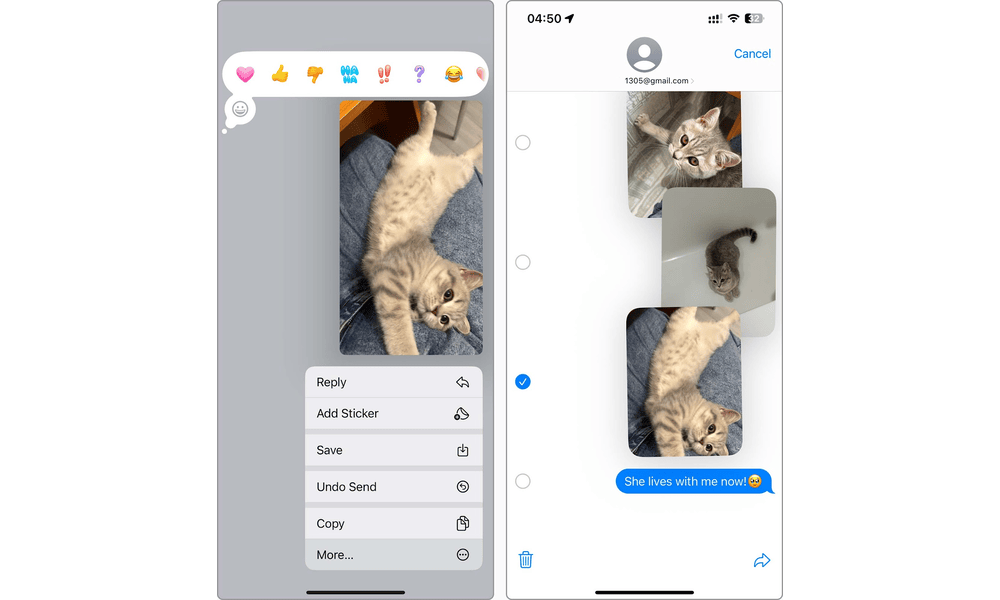
- Open the Messages app on your iPhone and go to the conversation with the photo you want to delete.
- Press and hold the image until a menu appears. Tap More… from the options.
- You’ll now see a circle next to every message. Tap the circle next to the image(s) you want to remove. A blue checkmark will appear.
- Tap the trash can icon in the bottom-left corner and confirm by tapping Delete Message. That’s it – the image is gone, but your text stays right where it is.
/wp:list-item
wp:list-item
/wp:list-item
wp:list-item
/wp:list-item
wp:list-item
/wp:list-item
/wp:list
wp:image {“id”:241368,”sizeSlug”:”full”,”linkDestination”:”none”,”align”:”center”}
/wp:image
wp:paragraph
But that’s not your only option. There’s another way built right into the Messages app that works better if you don’t feel like scrolling through a long thread to manually hunt down each photo.
/wp:paragraph
wp:list {“ordered”:true}
- wp:list-item
- Open the Messages app and pick the conversation with the images.
- Tap the contact’s name or icon at the top.
- Scroll down to the Photos section and tap See All. You’ll now see every photo sent or received in that thread.
- Tap Select in the top-right corner. Tap each image you want to delete – checkmarks will appear.
- Tap Delete in the bottom-right corner, then tap Delete Attachments to confirm.
/wp:list-item
wp:list-item
/wp:list-item
wp:list-item
/wp:list-item
wp:list-item
/wp:list-item
wp:list-item
/wp:list-item
/wp:list
wp:image {“id”:241367,”sizeSlug”:”full”,”linkDestination”:”none”,”align”:”center”}

/wp:image
wp:heading {“level”:3}
Option 2: Delete Photos from Messages Through iPhone Settings
/wp:heading
wp:paragraph
The Messages app method usually gets the job done, but there’s another way that might not be as obvious – through your iPhone’s storage settings. One method isn’t necessarily better than the other. They both work, it just depends on which way feels more natural to you.
/wp:paragraph
wp:list {“ordered”:true}
- wp:list-item
- Open the Settings app.
- Scroll down and tap General, and tap iPhone Storage.
- Wait for the page to load, then scroll until you see the list of installed apps. Find and tap Messages.
- Scroll to the DOCUMENTS section. You’ll see categories like Top Conversations, Photos, Videos, and GIFs and Stickers.
- Tap Photos. Now you’ll see all images from every message thread – not just one.
- Tap Edit at the top of the screen. Select the images you want to delete by tapping the circles next to them.
- Tap the trash can icon in the top-right corner to delete them.
/wp:list-item
wp:list-item
/wp:list-item
wp:list-item
/wp:list-item
wp:list-item
/wp:list-item
wp:list-item
/wp:list-item
wp:list-item
/wp:list-item
wp:list-item
/wp:list-item
/wp:list
wp:image {“id”:241366,”sizeSlug”:”full”,”linkDestination”:”none”,”align”:”center”}

/wp:image
wp:paragraph
Important: The system will not show a confirmation prompt. Once you tap the trash can, the selected images will be deleted immediately and permanently. Think twice before finalizing the action.
/wp:paragraph
wp:paragraph
Most people use this method when they’re trying to free up space by deleting large attachments. But it’s just as handy if you’re looking to clean out a few unnecessary photos from your messages.
/wp:paragraph
wp:heading
Small Bonus: Delete Other Unnecessary Photos from Your iPhone
/wp:heading
wp:paragraph
If you’ve already started clearing out photos from your Messages, why stop there? Your Photos app probably holds tons of old, duplicate, or random pics you don’t actually need. Getting rid of them won’t cost you anything important, but it can seriously free up space on your iPhone.
/wp:paragraph
wp:paragraph
Sure, you could scroll through and delete them one by one, but there’s a faster way. Try a cleanup app like Clever Cleaner: AI CleanUp App. It’s free and helps you wipe out all the clutter in just a few taps. We’re talking duplicate pictures, near-identical shots, screenshots, Live Photos, big files, and videos.
/wp:paragraph
wp:paragraph
Since this article focuses on images, we’ll show you how to clean up duplicates and similar photos. The other features work pretty much the same way if you want to explore more.
/wp:paragraph
wp:list {“ordered”:true}
- wp:list-item
- Download Clever Cleaner from the App Store on your iPhone, or head to the official site and scan the QR code to go straight to the app page.
- Open the app and give it permission to access your Photos. Once you’re in, tap on Similar in the bottom toolbar.
- The app will show you groups of similar or duplicate photos. It automatically picks the best shot in each group.
- If everything looks good, simply select Smart Cleanup to remove the extras.
- Want to keep a different photo instead? Tap into the group, deselect the one you like, and pick the one you want to delete instead, and tap on Move to Trash.
/wp:list-item
wp:list-item
/wp:list-item
wp:list-item
/wp:list-item
wp:list-item
/wp:list-item
wp:list-item
/wp:list-item
/wp:list
wp:image {“id”:241365,”sizeSlug”:”full”,”linkDestination”:”none”,”align”:”center”}

/wp:image
wp:list {“ordered”:true,”start”:6}
- wp:list-item
- The photos you select go into the app’s trash. If you’re confident, tap Empty Trash. Not sure yet? Tap the notification and double-check before deleting.
- To finish up, slide the Slide to Delete bar. The images will be removed from your Photos app and moved to the Recently Deleted album. Open the album and clear it out to free up space.
/wp:list-item
wp:list-item
/wp:list-item
/wp:list
wp:image {“id”:241364,”sizeSlug”:”full”,”linkDestination”:”none”,”align”:”center”}

/wp:image
wp:paragraph
This way is way faster than cleaning things up manually, and it lets you get rid of a bunch of junk photos in just a few taps.
/wp:paragraph
wp:heading
Final Thoughts
/wp:heading
wp:paragraph
Photos add a nice touch to regular text messages. You can send an ‘I’m here’ with a shot of a landmark, show off your new cat with a quick ‘Look’, or react to something without saying a word.
/wp:paragraph
wp:paragraph
But when too many images pile up, even your best message threads start to feel cluttered. Scrolling gets annoying, it’s harder to find what matters, and your iPhone fills up with junk. That’s why it’s smart to clear out extra images periodically. As this article showed, there’s more than one easy way to do it.
/wp:paragraph
wp:paragraph
And don’t stop with Messages. Check your Photos app and even Files – those locations fill up fast too. Clear out anything you don’t need, and you’ll probably free up a few extra gigs. It’s an easy win with zero downside.
/wp:paragraph